
Changing your mouse setup on a Mac can significantly enhance your computing experience. Whether you are upgrading to a new device or customizing settings to fit your workflow, this guide will walk you through the entire process smoothly, ensuring that your new or existing mouse works optimally with your Mac.
Understanding Mac-Compatible Mice
Before diving into the setup, it is essential to understand the types of mice you can use with a Mac. Apple offers its own Magic Mouse known for its sleek design and multi-touch capabilities. However, several third-party mice, such as those from Logitech or Microsoft, are also fully compatible and often come with additional features that can be configured for diverse tasks.
- Types of Mice for Mac: Apple Magic Mouse is an intuitive option, while third-party mice provide extended functionality.
- Key Features to Consider: Ergonomics, additional buttons, and connection type (Bluetooth or USB) are vital considerations when selecting a mouse.
With an understanding of the available options, the next step is to connect your new mouse to your Mac.

Connecting a New Mouse to Your Mac
Connecting a mouse to your Mac, whether it is a Bluetooth or a wired device, is a simple process. Follow these steps to ensure a smooth connection:
- Pairing a Bluetooth Mouse: Make sure your Bluetooth mouse is charged and in pairing mode, then navigate to the Apple menu, select ‘System Preferences,’ and click on ‘Bluetooth.’ Find your mouse in the list of devices and click ‘Connect.’
- Connecting a Wired Mouse: Plug the mouse’s USB connector into an available port on your Mac. The system should automatically recognize the device.
Once connected, it’s time to adjust the settings for a more tailored experience.
Adjusting Mouse Settings on a Mac
Customizing your mouse settings helps you optimize performance and comfort. MacOS provides an array of options that you can tweak to suit your preferences.
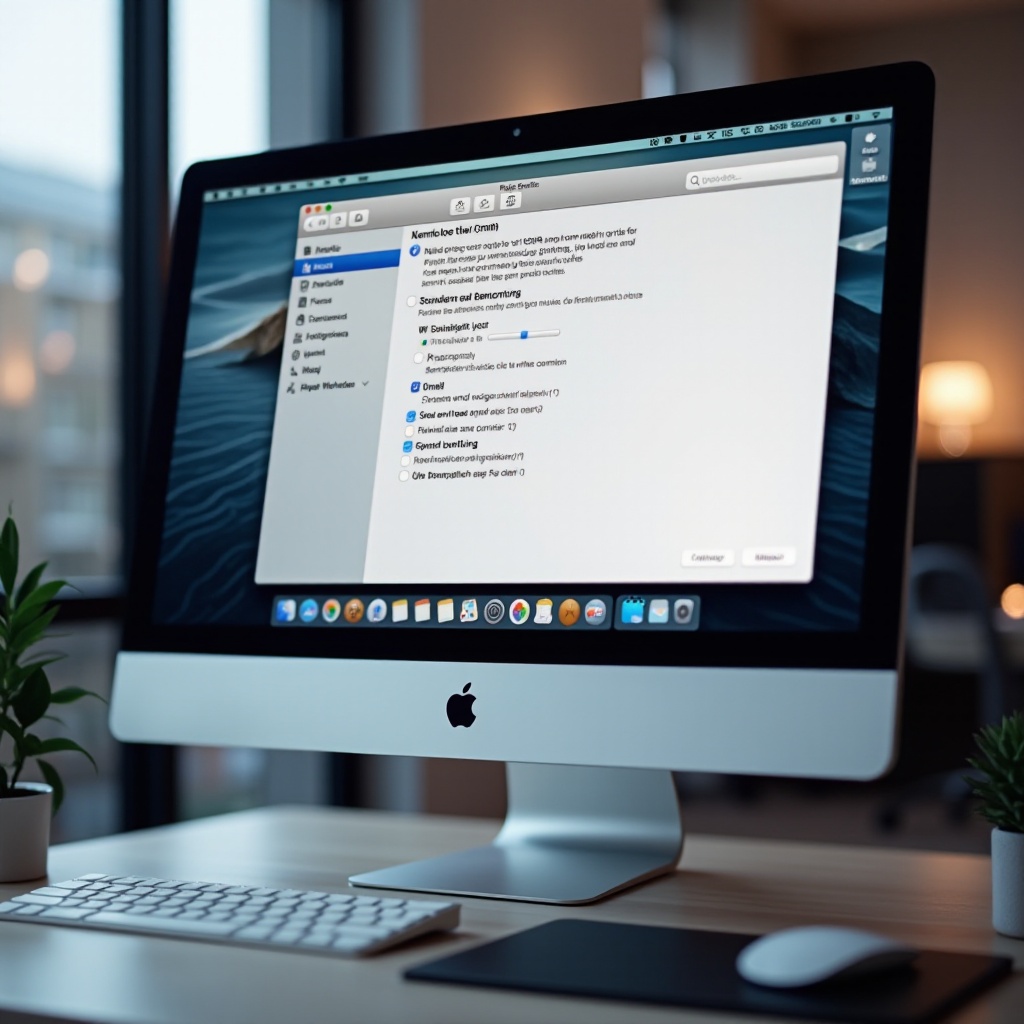
- Accessing System Preferences: Go to the Apple menu, select ‘System Preferences,’ then click on ‘Mouse’ or ‘Trackpad’ depending on your device.
- Customizing Tracking and Scrolling: Adjust the tracking speed to control cursor movement and modify scrolling direction under ‘Scroll & Zoom’ for more intuitive navigation.
- Button Configuration: Enable secondary click and explore button customization via the manufacturer’s software for non-Apple mice.
Properly setting your mouse will enhance its functionality, but you may encounter occasional issues that need troubleshooting.
Troubleshooting Common Mouse Issues
Even the most seamless setup can face issues. Here’s how to tackle common problems effectively:
- Solving Connectivity Problems: Check battery levels for wireless devices and ensure your Bluetooth is enabled. If the issue persists, try resetting the Bluetooth module.
- Addressing Lag and Responsiveness: If your mouse is unresponsive or laggy, restart your Mac or check for available macOS updates, as these can rectify underlying software issues.
Once your mouse is functioning correctly, consider utilizing Mac’s accessibility features for additional customization and ease of use.

Utilizing Mac’s Accessibility Features for Mouse Control
MacOS includes robust accessibility options that enable you to personalize mouse operations further, benefiting a wide range of users.
- Overview of Accessibility Options: Features such as ‘AssistiveTouch’ offer gesture controls, enhancing your interaction with the interface.
- Tips for Users with Special Needs: Activate ‘Mouse Keys’ to use the numeric keypad for movement, and adjust cursor size for increased visibility from ‘System Preferences.’
These features ensure that every user can configure their Mac to best support their needs.
Conclusion
Changing and configuring your mouse on a Mac doesn’t have to be a daunting task. By selecting the right device, customizing its settings, and utilizing Apple’s accessibility features, you can create a comfortable and efficient user experience. Ensure your system is always up-to-date to maintain optimal performance and stay ahead of any potential issues.
Frequently Asked Questions
How do I reset my mouse settings on a Mac?
Go to ‘System Preferences,’ select ‘Mouse’ or ‘Trackpad,’ and restore default settings.
Can I use a non-Apple mouse with my Mac?
Yes, third-party mice are compatible. Just ensure the right drivers or software are installed.
What should I do if my Mac doesn’t recognize my mouse?
Check your connection, restart your Mac, and ensure you have the latest macOS updates.