
Introduction
Effective text readability on your iPhone enhances overall usability, making everyday interactions more efficient and enjoyable. Users often inquire about ‘what’s the normal text size for iPhone?’ This guide aims to clarify the default settings, walk you through personalization options, and offer expert tips for achieving the best screen experience.
Understanding Standard Text Size on iPhone
The default text size settings across iPhone models are designed to optimize user interaction and display clarity. Recognizing these standards helps in better utilizing your device. While Apple’s standard caters to the majority, individual preferences might lead you to explore text size customization.
Default Settings Across Models
The default text size encompasses a uniform approach suitable for most users, especially on models such as the iPhone 14. This approach maintains screen efficiency without compromising text clarity.
Impact of iOS Updates on Text Size
With each iOS update, text size standards are reassessed, bringing enhancements like dynamic type settings. Such updates reflect Apple’s commitment to accessibility, improving readability even for those with visual challenges.
Understanding these aspects of text size standards allows thoughtful adjustments based on evolving iOS features and personal needs.
How to Adjust Text Size on Your iPhone
Apple equips users with versatile tools to tailor text size, ensuring a smoother experience.
Step-by-Step Guide to Accessing Display Settings
- Open your ‘Settings’ application.
- Tap ‘Display & Brightness’.
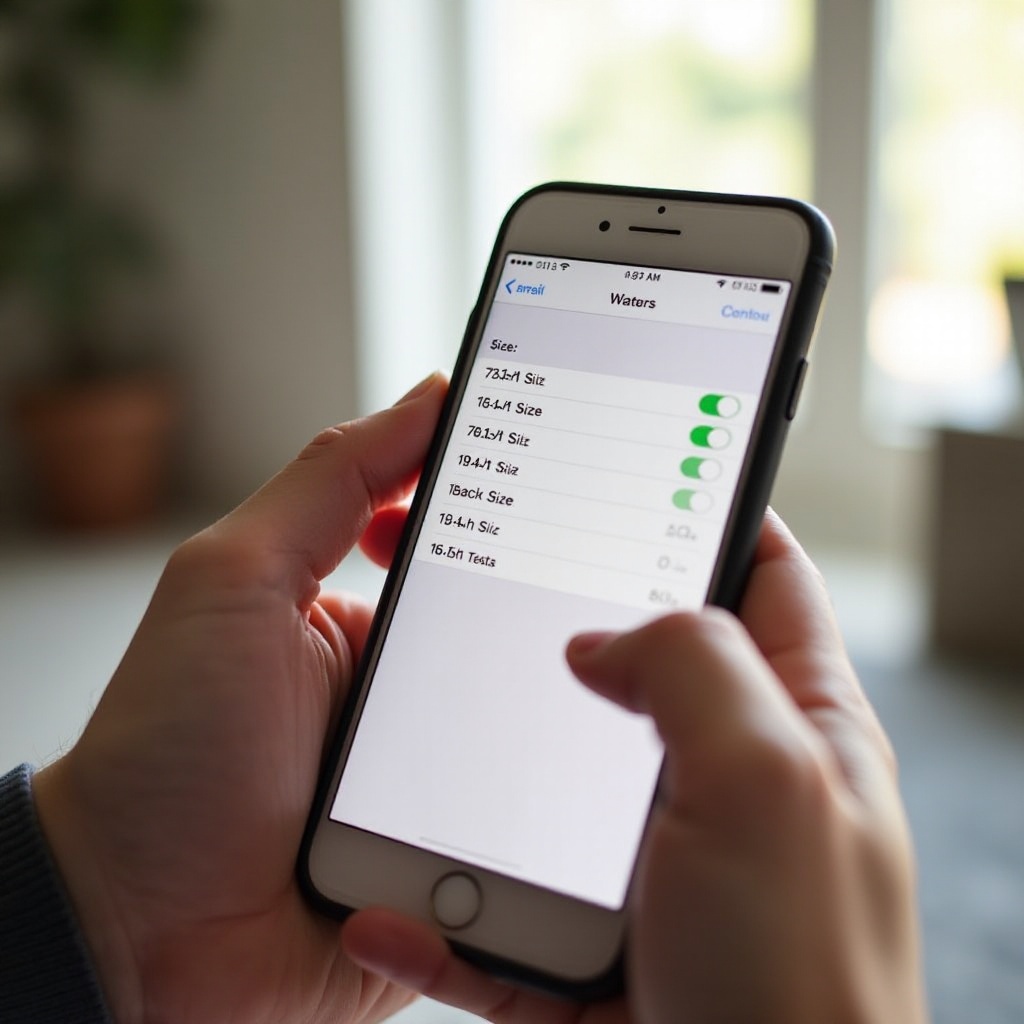
- Access ‘Text Size’, where you can move the slider to adjust.
Utilizing Accessibility Features for Text Adjustments
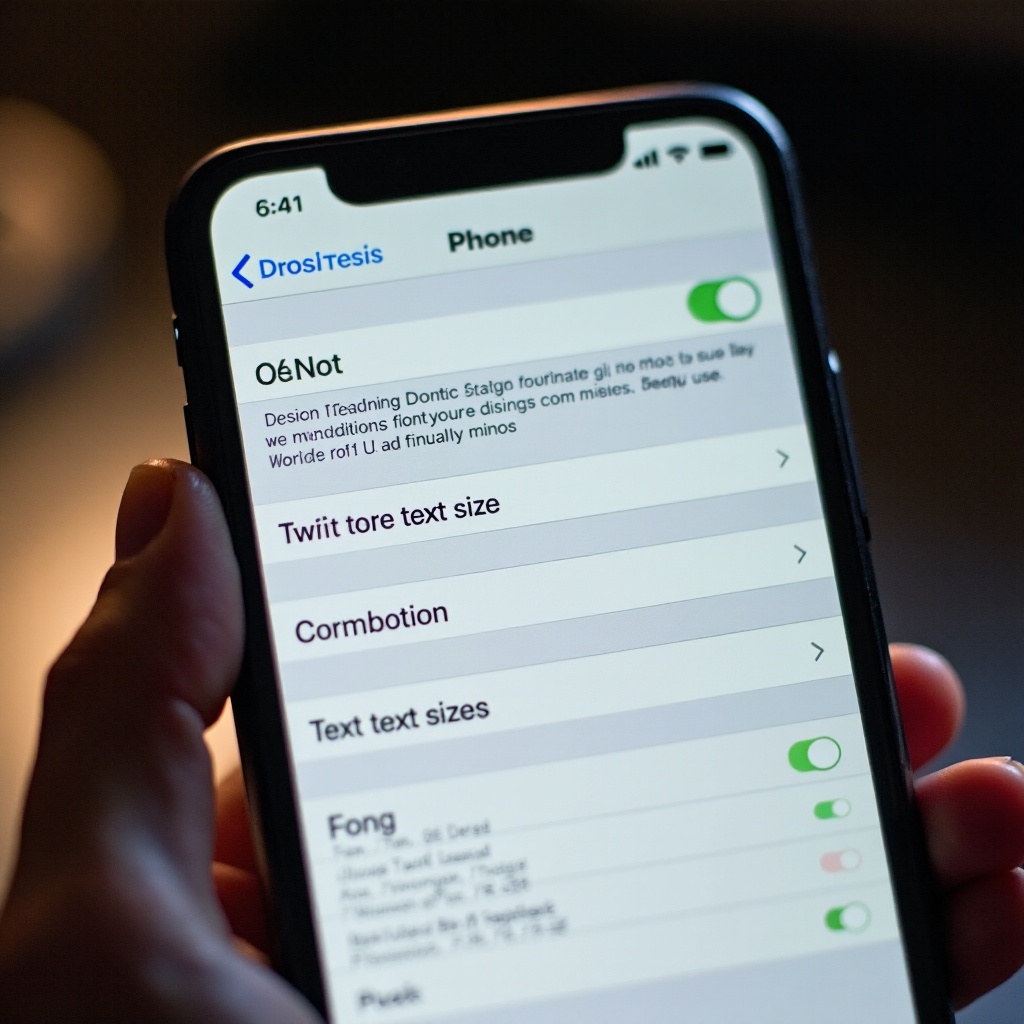
For specialized adjustments, navigate to ‘Settings’, select ‘Accessibility’, then ‘Display & Text Size’. Here, options include larger text settings for enhanced visibility.
Customizing iPhone text size is most effective when balancing personal preferences with underlying device functionality.
Benefits of Customizing Text Size
Personalizing text size caters uniquely to user needs, significantly elevating device usage.
Enhancing Readability and User Comfort
Finding the right text size alleviates eye strain during extended use, facilitating easier reading and better focus.
Accessibility Improvements for Impaired Vision
For individuals with visual impairments, customized text settings enable access to features independently, representing Apple’s inclusivity drive.
Exploring these benefits reveals the broader potential for an individualized smart device experience, leading into solutions for common text adjustments challenges.
Common Issues and Solutions When Changing Text Size
Adapting text size occasionally introduces display challenges, where solutions are straightforward.
Troubleshooting Display Problems
Overlapping text within apps can usually be resolved by restarting the application or device. Ensuring app compatibility with adjusted settings is crucial.
Resetting to Default Settings When Needed
Return to default settings from ‘Display & Brightness’ as necessary. Center the size slider to restore standard size.
Navigating through and remedying these issues ensures flexibility without sacrificing core functionality.
Expert Tips for Optimizing Text Size Settings
Expert advice enhances optimal text use balancing visuals with practicality.
Balancing Aesthetic Appeal and Functionality
Enlarged text improves read capability, but moderation prevents compromising screen aesthetic.
Recommended Settings for Different Users
Seniors and those with impaired vision benefit from using the accessibility menu for larger text, while younger users might favor moderate sizes. Regular reviews of these settings enable adjustments that maintain device efficiency.
Applying expert insights ensures a highly personalized, balanced experience.
Conclusion
Adjusting text size on your iPhone enhances device interaction significantly, promoting better readability and personal comfort. Employ these strategies to maximize your experience.
Frequently Asked Questions
What is the smallest text size I can set on my iPhone?
The smallest text size depends on your model, accessed via ‘Display & Text Size’ slider.
How does text size affect battery life on my iPhone?
Text size minimally impacts battery life compared to brightness and background processes.
Can I apply different text sizes for individual apps?
System-wide settings affect all apps; individual apps may offer in-app text adjustments.