
Introduction
Gamers realize how pivotal TV settings are for game performance. LG TVs offer advanced settings, like game mode, crafted to boost visual and auditory experiences during play. By mastering these features, you can significantly enhance your gaming sessions. This guide explores effective usage of LG TV’s game mode,
ensuring smooth gameplay and richness in experience.
Understanding Game Mode on LG TVs
LG TVs include a game mode tailored for gamers desiring an optimized setup. This feature reduces input lag and enhances sound and picture accuracy during gameplay. Input lag is the delay between controller action and screen reaction. Game mode minimizes this, ensuring real-time gaming and improved interaction. Additionally, it automatically adjusts visual settings to suit the dynamic graphics of gaming.
Seamlessly transitioning to activation, let’s delve into the setup process.
How to Activate Game Mode on LG TVs
Activating game mode on an LG TV is intuitive and efficient. Here’s a guide:
- Access the Settings Menu: Use your remote to enter the settings menu via the ‘Settings’ button.
- Select ‘Picture Mode’: Within settings, find and choose ‘Picture Mode.
- Pick Game Mode: Scroll through options and select ‘Game.
- Tailor Your Settings: Adjust specific picture and sound settings to match your preferences or game demands.
Models may differ slightly in option names or settings locations, so checking your specific manual is recommended. Post-activation, expect improved responsiveness and visual quality.
With game mode set, we move into customizing sound and visuals for optimal gaming.
Optimizing Picture and Sound Settings for Gaming
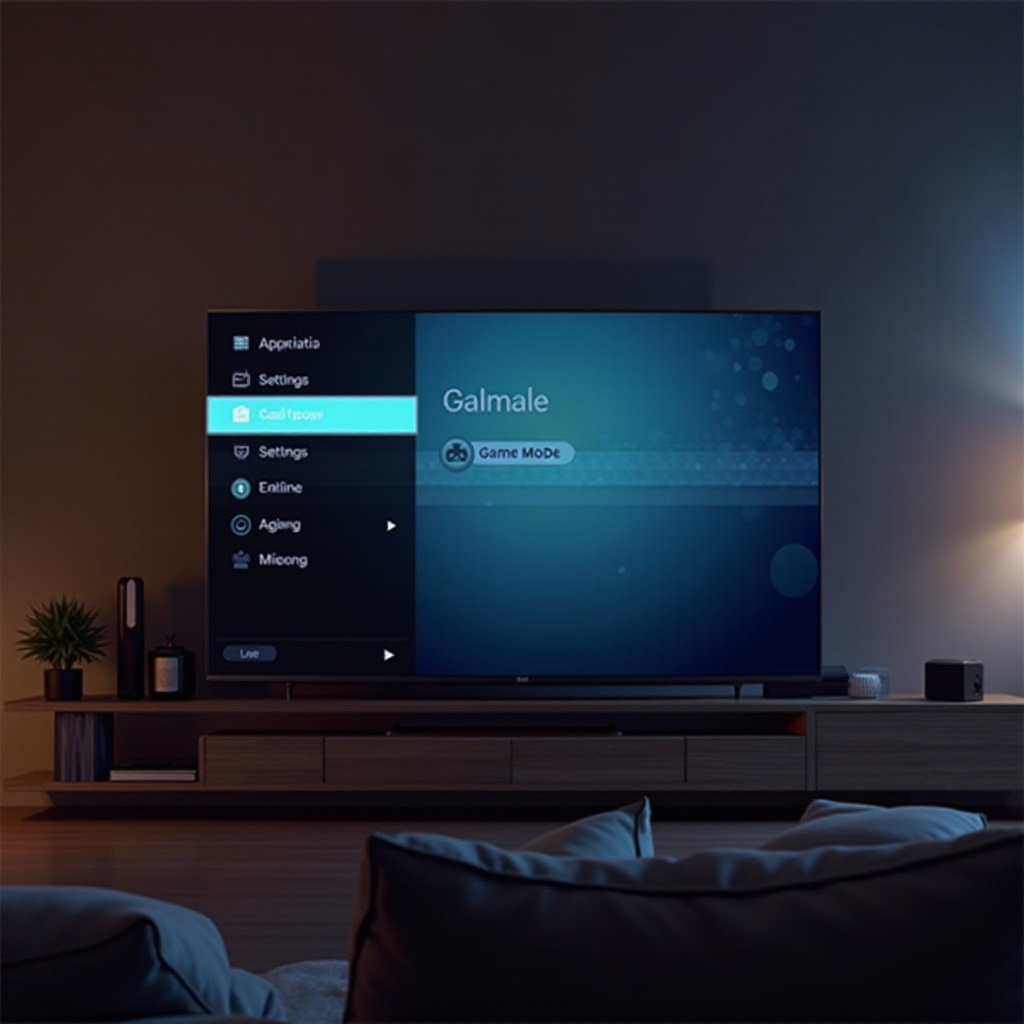
After activating game mode, refining settings can heighten your gaming:
-
Picture Adjustments: Balance brightness to avoid eye strain. Adjust contrast to enhance image depth and clarity. Alter color settings for vibrant, realistic visuals.
-
Audio Configuration: Enable surround sound for immersive atmosphere. Set equalizer to enhance game-specific sounds, boosting effects and voices.
Settings personalization can depend on your game genre, like action or RPG. Experimentation helps find the ideal setup.
Despite optimized configurations, occasional issues can arise. Here’s how to address them.
Troubleshooting Common Game Mode Issues
Even though game mode enhances your experience, performance hiccups or setting application failures may occur. Here’s how to troubleshoot:
-
Lag Persists: Confirm game mode is enabled by revisiting settings. Persistent lag may require checking HDMI cables or trying different ports.
-
Visual Distortions: Double-check resolution settings for clarity. Adjust sharpness and color saturation to minimize flaws.
-
Sound Problems: Ensure audio settings are configured and connections are secure. Consider a reset if issues linger.
Addressing these common issues beforehand ensures consistent high-level gaming performance.
Conclusion
Using and optimizing game mode on your LG TV profoundly impacts gaming, offering reduced lag and spectacular audiovisuals. Game mode maximizes engagement in your gaming realm. Dive into settings exploration to discover what best fits your gaming adventure.
Frequently Asked Questions
What is game mode on LG TVs?
Game mode is a setting on LG TVs that reduces input lag and enhances picture and sound quality, ideal for gaming.
Does game mode improve gaming performance?
Yes, game mode boosts gaming performance by quickening response times and refining visuals and sounds for smoother gameplay.
How do I know if game mode is working on my LG TV?
Check ‘Picture Mode’ to see if it’s set to ‘Game.’ Look for better responsiveness and superior picture quality as indicators.