
Introduction
LG OLED TVs are renowned for their exceptional picture quality and sophisticated technology. Customizing the screensaver on your TV is a straightforward way to personalize your viewing experience and protect your screen from potential burn-in issues. This guide will take you through the steps to change the screensaver on your LG OLED TV, offering customization tips and effective troubleshooting advice.
Understanding LG OLED TV Screensavers
Screensavers are more than just decorative elements on your LG OLED TV. They serve the crucial function of preventing image retention on OLED displays, where static images can sometimes leave a ghostly imprint. The screensaver kicks in after a set period of inactivity, displaying dynamic visuals that help maintain the screen’s health. LG OLED TVs come with pre-installed screensavers, but you can easily change them to suit your preferences.
Step-by-Step Guide to Changing Your Screensaver
Changing the screensaver on your LG OLED TV is a simple process that enhances your viewing experience. Here’s how you do it:
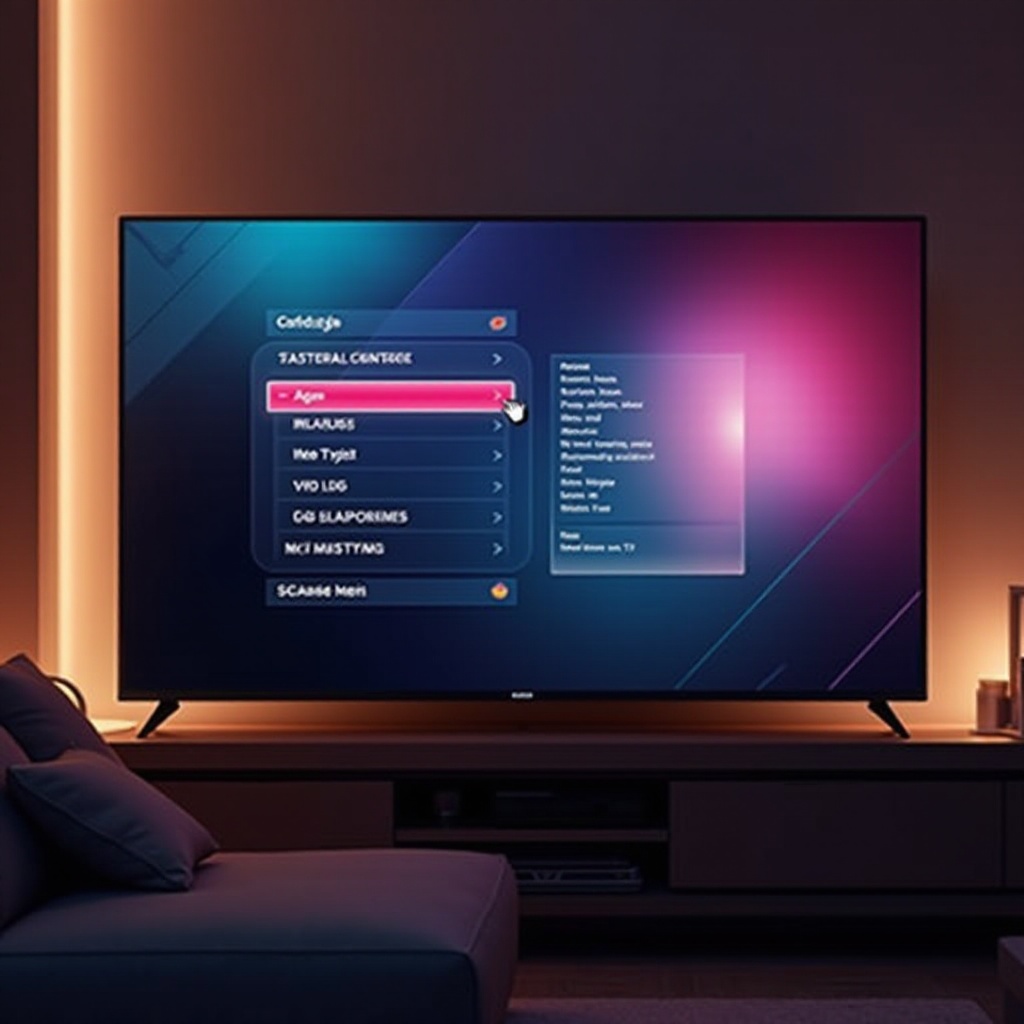
- Access the Settings Menu: Press the ‘Settings’ button on your LG remote (it’s the gear icon). Navigate through the settings using your remote’s directional pad.
- Navigate to Screensaver Settings: In the settings, go to ‘General’ or ‘All Settings’. From here, scroll to find the ‘Screensaver’ or ‘Eco Mode’ options.
- Select and Apply a New Screensaver: Browse the available screensaver options. Use your remote to select your favorite and press ‘OK’ to apply it. Confirm your selection to finalize the change.
These simple steps let you tailor your screensaver, helping your TV reflect your style.
Customizing Your Screensaver Experience
Once you’ve selected a new screensaver, you can explore additional customization features:
- Using Personal Photos: Transfer your images to a USB drive, insert it into the TV’s USB port, and navigate to the media section to add them to your screensaver playlist.
- Exploring Third-Party Apps: Through the LG Content Store, consider third-party apps that offer diverse and artistic screensaver options.
Personalizing your screensaver can transform your TV into a unique part of your living space, enhancing its ambiance.
Troubleshooting Common Screensaver Problems
Sometimes, issues can arise when setting or using screensavers. Here are common problems and solutions:
- Screensaver Not Activating: Ensure that the ‘Auto Power Off’ feature isn’t preventing the screensaver from starting.
- Software Updates: Verify through the software update section that your TV firmware is current.
- Image Compatibility: If personal images aren’t displaying, check file compatibility and try using different formats.
By resolving these issues, you ensure that your screensaver operates smoothly, providing continuous enjoyment.
Advanced Tips for Screensaver Customization
For those seeking further customization, here are some advanced tips:
- Schedule Different Screensavers: Set screensavers to change automatically at different times of day to match your mood or setting.
- Dynamic Visuals: Incorporate moving images or animations to add a sophisticated touch to your screensaver.
Using these tips can elevate your TV time, making every moment in front of the screen engaging and personal.
Conclusion
Altering and customizing the screensaver on your LG OLED TV not only protects your device but enriches your viewing aesthetics. By following this guide, viewers are empowered to personalize their screensaver settings effortlessly. As you explore these options, remember – the way you choose to display images or animations can enhance both the protectiveness and attractiveness of your TV screen.
Frequently Asked Questions
How do I reset my screensaver to the default setting on my LG OLED TV?
Access the screensaver settings from the main menu and look for a ‘Reset to Default’ option. Select it and confirm your choice to revert to the original screensaver.
Can I set different screensavers for different input modes?
Most LG OLED TVs support a universal screensaver setting. However, if your model allows profile-based settings, you can configure different screensavers for specific input modes.
Why isn’t my screensaver activating after the set time?
Ensure that inactivity settings are properly configured and that no other settings, like ‘Auto Power Off’, are overriding your screensaver activation time.