
Introduction
Enhancing your TV’s audio can take your home entertainment to new heights, making viewing more immersive and enjoyable. A Sonos soundbar offers a straightforward path to achieving this enhancement by delivering superior sound quality. Though setting up a Sonos soundbar might seem challenging, this comprehensive guide simplifies the process. We’ll cover connecting your device, troubleshooting potential issues, and optimizing its settings, ensuring you get the most out of your soundbar.
Preparing for Connection
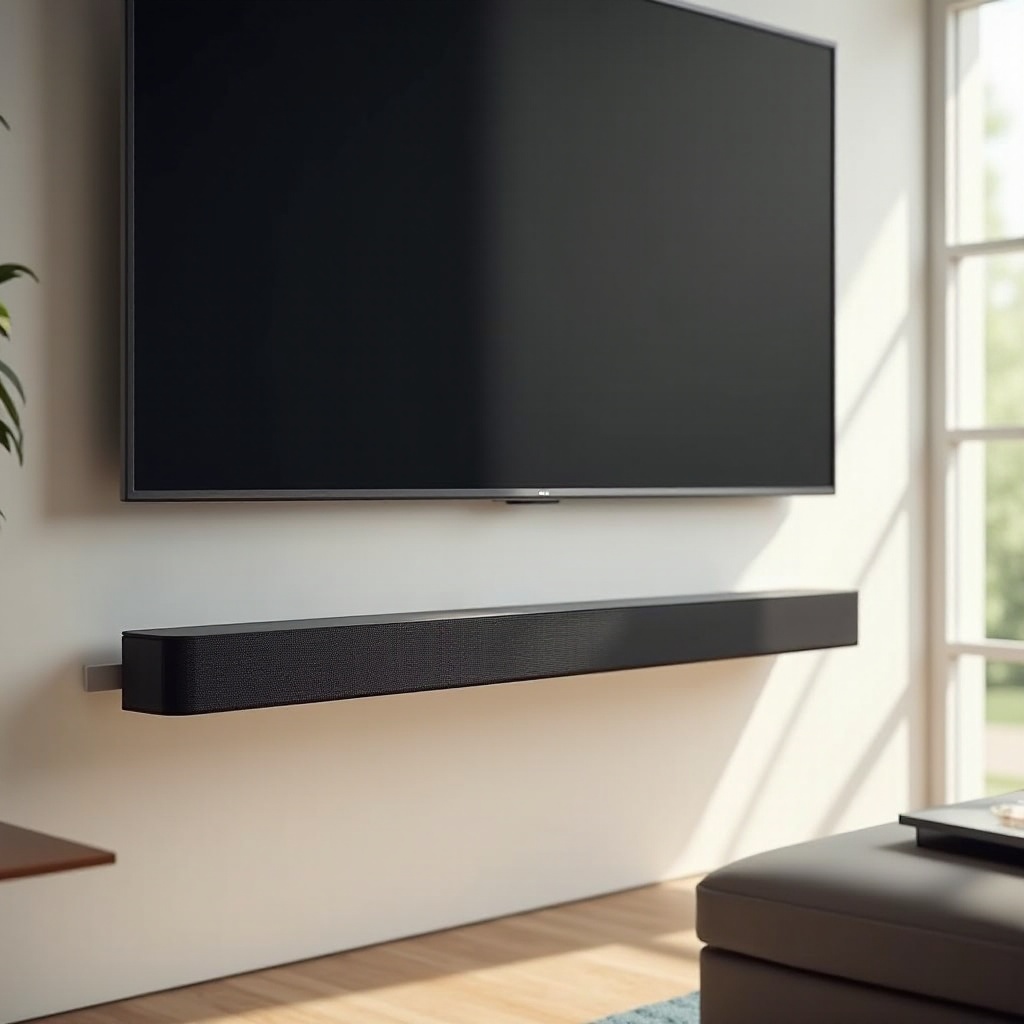
Before diving into the connection process, some preparation is necessary. Start by verifying that your TV is compatible with your Sonos soundbar. Most modern TVs feature an HDMI ARC (Audio Return Channel) port, which facilitates a seamless connection. Check for this port, usually labeled on the rear of the television.
Once compatibility is confirmed, gather the supplies needed for setup. If your TV has an HDMI ARC port, you’ll need an HDMI cable; otherwise, procure an optical cable for non-ARC connections. Additionally, ensure you have a strong Wi-Fi network to connect the soundbar via the Sonos app.
Physical Setup
With everything ready, proceed to the physical connection of your equipment.
-
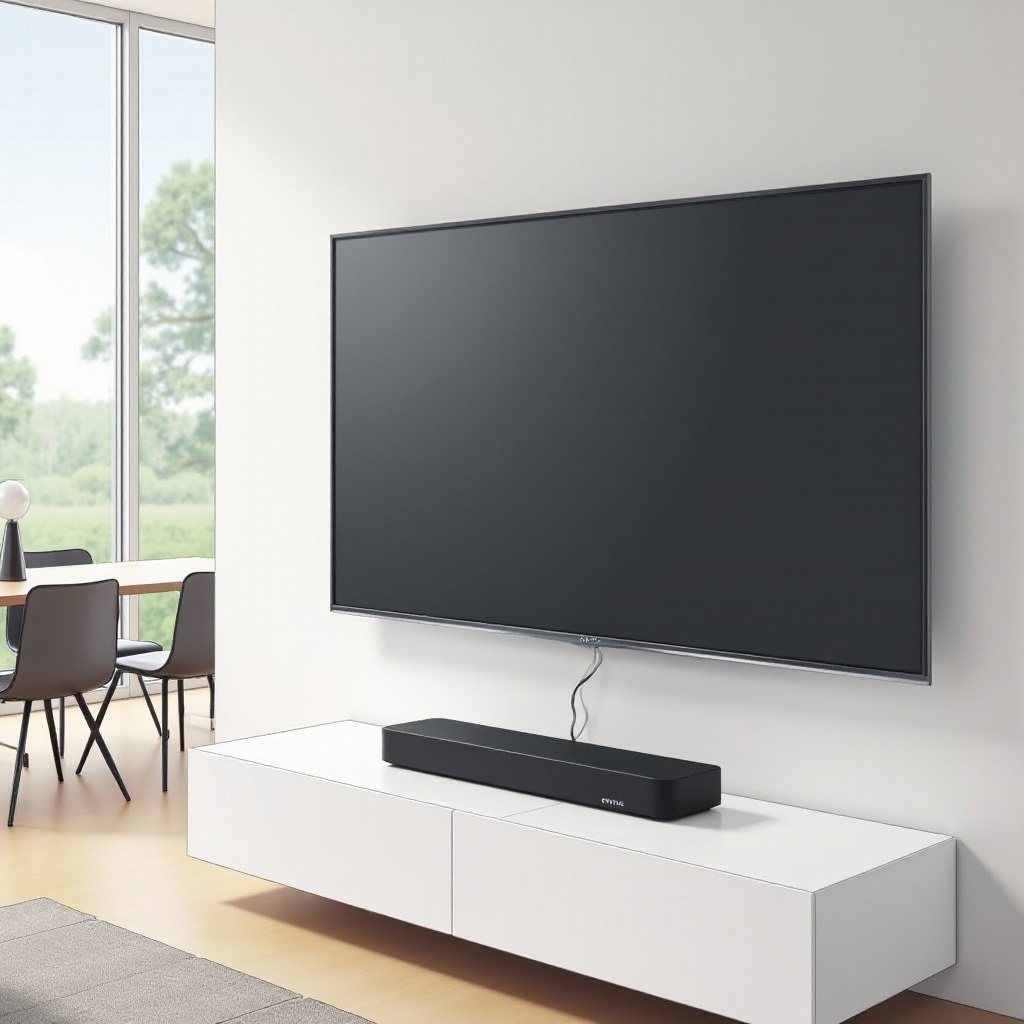
Unboxing and Placement: Begin by unboxing your Sonos soundbar carefully, verifying that all components are present. Position the soundbar in a central location beneath your TV for optimal audio directionality and minimal obstruction.
-
Connecting with HDMI ARC: Locate your TV’s HDMI ARC port. Connect one end of your HDMI cable to this port and the other end to the corresponding port on your Sonos soundbar. This method allows the TV to send audio signals directly to the soundbar.
-
Using Optical Cable for Connection: If your TV doesn’t support ARC, opt for an optical cable. Attach this to the optical out port on your TV and connect the other end to the soundbar’s optical input. This setup offers excellent sound quality, though the control features might be less convenient than HDMI ARC.
Once your cables are secure, power on both your TV and soundbar to facilitate the software configuration.
App Setup and Configuration
Post-physical setup, the Sonos app is essential for further configuration.
-
Downloading the Sonos App: Install the Sonos app on your smartphone or tablet from the App Store or Google Play. This app serves as a control hub, managing device settings and interactions.
-
Connecting the Soundbar to Wi-Fi: Within the app, follow guided instructions to join your home Wi-Fi network. A robust connection ensures consistent performance and access to updates.
-
Ensuring Firmware Updates: The app also checks for updates, upgrading your soundbar’s firmware to enhance functionality and resolve issues.
App setup ensures your soundbar’s full potential is unlocked, setting the stage for testing and troubleshooting.
Testing and Troubleshooting
Audio testing verifies your setup’s integrity by confirming performance standards. Play a variety of content—movies, music, shows—to evaluate audio quality.
Common issues may include:
-
No Sound: Verify that your TV’s audio output directs sound to the connected port—HDMI or optical.
-
Delayed Sound: Check for necessary updates and confirm your TV supports the selected connection method.
By addressing these issues, you’ll maintain consistent audio quality, which leads to the final step of optimizing your sound experience.
Optimizing Sound Experience
Optimization tailors the soundbar’s output to match your environment and preferences.
-
Using the Sonos App to Adjust Sound Settings: Explore the app’s advanced features like Trueplay tuning, which adapts sound based on room acoustics. Adjust equalizer settings to modify bass, mids, and trebles to fit your taste.
-
Integrating with Other Sonos Products: Link additional Sonos speakers to create a multi-room sound system, providing synchronized audio throughout your home and controlled via the app.
Optimizing your system’s sound ensures a rich and enlivening experience, summarizing the benefits and suitability of a fully connected soundbar setup.
Conclusion
By following these instructions, connecting a Sonos soundbar to your TV becomes remarkably manageable. Successfully integrating and optimizing the soundbar significantly enhances your audio experience, transforming regular viewing into extraordinary engagement. We encourage you to share feedback and ask questions to enhance this guide with shared user insights.
Frequently Asked Questions
How do I connect my Sonos Soundbar if my TV doesn’t support HDMI ARC?
Use an optical cable to link your TV’s optical out port to the soundbar’s optical input. This connection provides excellent sound quality.
Can I use my Sonos Soundbar with older TV models?
Yes, connect the soundbar using an optical cable if your older TV includes an optical out port.
What to do if the sound from the Sonos Soundbar is delayed?
Ensure the firmware is updated via the Sonos app, and verify that your TV’s audio output settings are correct for the connected method.