
Introduction
Connecting your Amazon Alexa to WiFi unlocks its full potential, enabling a range of smart features like streaming music, controlling home devices, and providing instant information. This guide breaks down the process into manageable steps to ensure your Alexa device stays connected and functions flawlessly.
Understanding Amazon Alexa and WiFi Connectivity
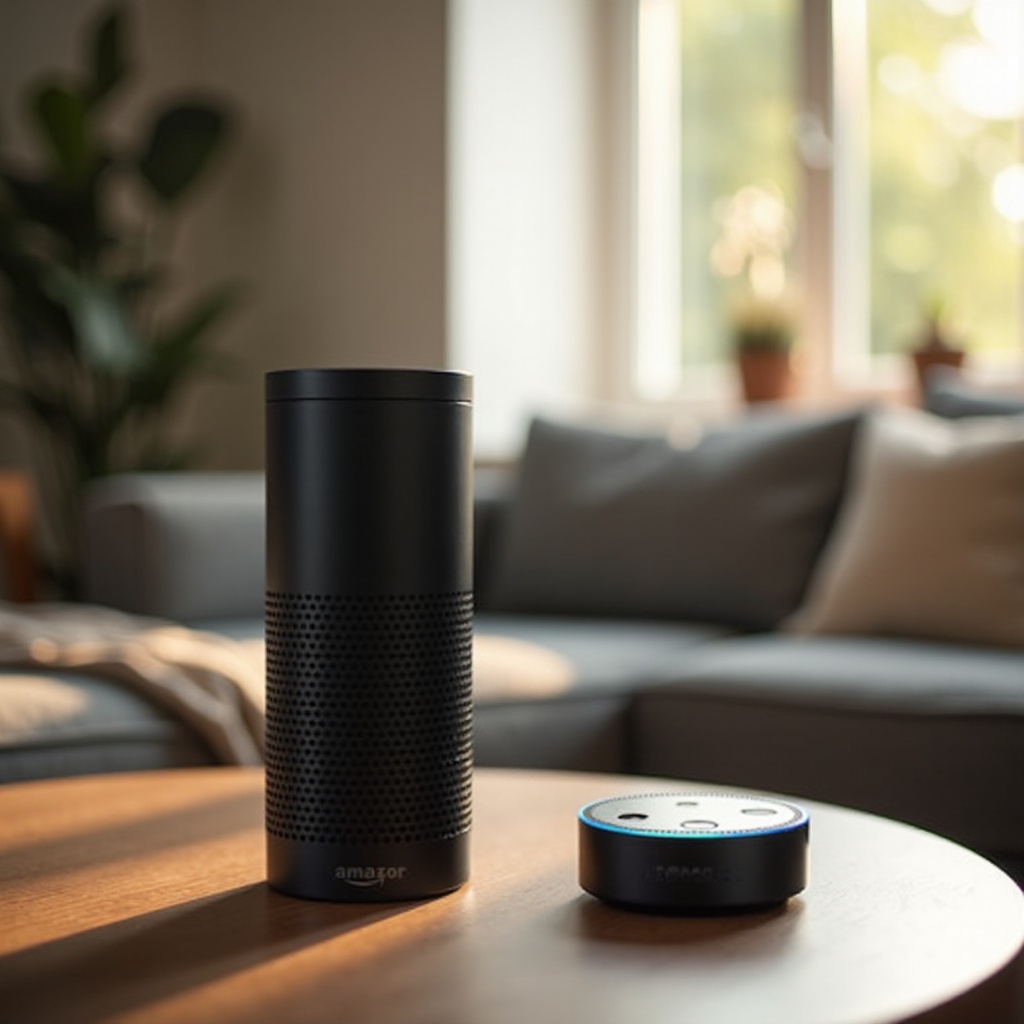
Before diving into the technical setup, grasping how Alexa utilizes WiFi is essential. WiFi is the linchpin for Alexa’s operations, facilitating seamless cloud service interactions for voice commands and actions. Models like Echo Dot, Echo Show, and Echo Studio heavily rely on this connection.
The Role of WiFi in Alexa Functionality
A robust WiFi connection allows Alexa to perform tasks like audio streaming, smart device control, and answering queries efficiently. Without reliable WiFi, these functionalities are limited. Ensuring Alexa is connected properly allows continuous high performance.
Compatible Smart Speaker Models
Different Alexa-enabled speakers require slightly different setup processes. Confirm your speaker model supports WiFi connection and familiarize yourself with specific requirements for devices like the Echo Dot, Echo Plus, and Echo Show.
Preparing for Connection
Ensuring your device is ready involves verifying compatibility and assessing your WiFi network’s capacity to maintain a strong connection.
Checking Device Compatibility
Start by ensuring your Amazon Alexa speaker model supports WiFi connectivity. Most modern devices fit this criterion but check your device’s specifications either on the packaging or via the Alexa app.
Assessing Your WiFi Network
Confirm your WiFi network is capable of supporting Alexa’s operations. The network should be secure, have strong signal strength, and avoid being overloaded with too many connected devices, which might hamper performance.
Step-by-Step Guide to Connecting Alexa to WiFi
With preparations complete, proceed with connecting your Alexa device using these steps:
Utilizing the Alexa App for Setup
- Download and install the Alexa app on your mobile device.
- Open the app and sign in with your Amazon credentials.
- Select your device from the list and go to ‘Settings’.
- Tap ‘WiFi Network’ and follow the prompts to connect.
Troubleshooting Common Connection Issues
If connection problems arise, try these solutions:
– Restart your router and Alexa device.
– Confirm the device is within router range.
– Check for firmware updates via the Alexa app and install if necessary.
Optimizing Speaker Performance Post-Connection
Once connected, focus on enhancing your speaker’s performance by fine-tuning settings and keeping the device updated.
Configuring Speaker Settings
Use the Alexa app to tweak settings such as sound profiles, alarms, and multi-room audio features, ensuring a personalized experience that takes full advantage of your speaker’s capabilities.
Updating Alexa Firmware
Regular updates ensure your device operates efficiently and gains new features. Set your Alexa app to automatically update to maintain peak performance, avoiding service interruptions.
Maintaining a Stable WiFi Connection
A steady WiFi connection is crucial for uninterrupted Alexa service. Manage network settings to optimize coverage within your home.
Managing Network Devices
Monitor the number of devices connected to your WiFi. Overloading can affect Alexa performance. Limit simultaneous connections and consider upgrading your router for better device handling.
Enhancing Coverage with WiFi Extensions
If your home has areas with poor signal, WiFi extenders can improve range and quality throughout the house. Place extenders strategically to ensure consistent coverage and avoid disconnection.
Advanced Tips for Connectivity
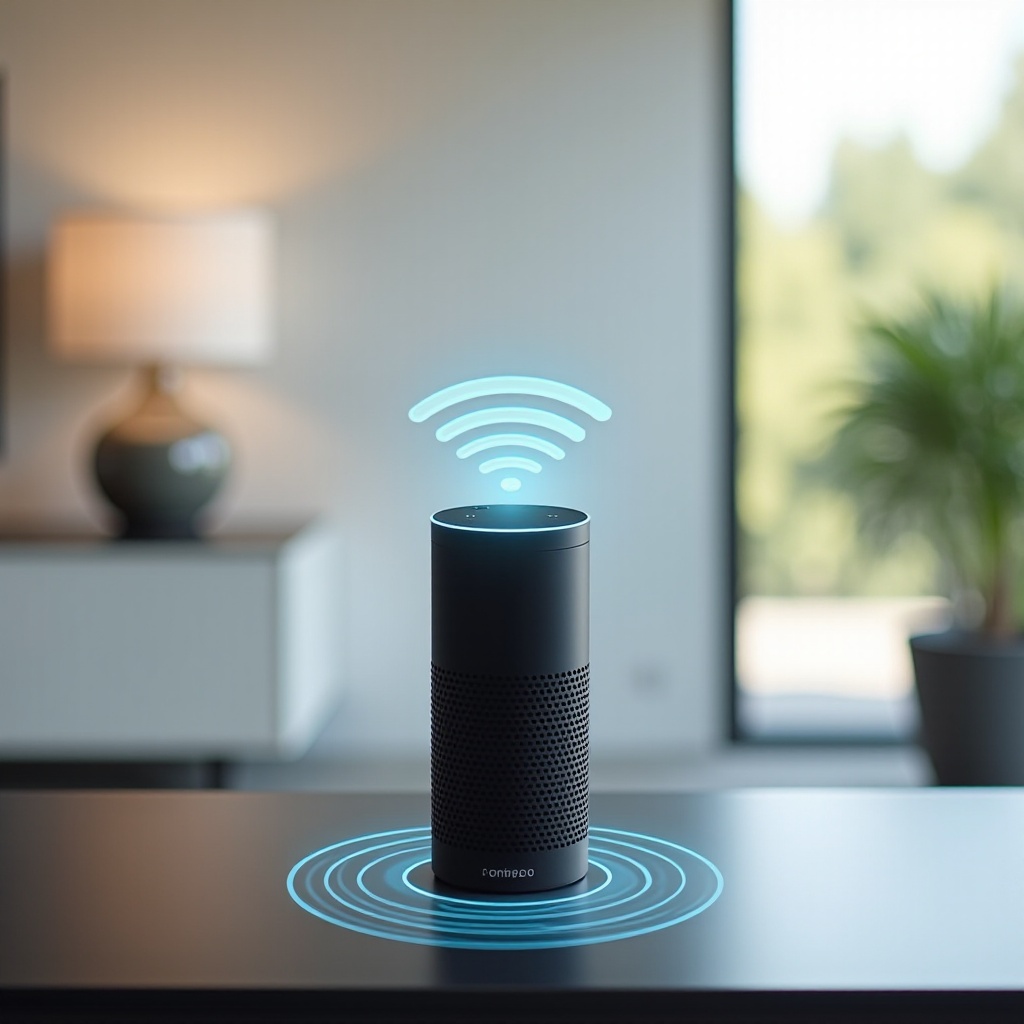
For superior experience, adopt advanced methods to minimize interference and strengthen connections.
Dual-Band Router Setup
Utilize a dual-band router to split devices between the 2.4GHz and 5GHz bands, optimizing speed and reducing congestion. This strategy prevents connection drops due to heavy traffic on one band.
Minimizing Interference
Identify and mitigate potential sources of interference such as cordless phones or microwaves that may disrupt WiFi signals. Position Alexa away from walls or electronic barriers to enhance signal reception.
Conclusion
By understanding and executing effective setup strategies, connecting Amazon Alexa to WiFi guarantees you exploit all its smart speaker abilities. Addressing potential problems and optimizing your network empowers Alexa to efficiently manage tasks, ensuring a comprehensive user experience.
Frequently Asked Questions
How can I reconnect Alexa to WiFi after changing my router?
Open the Alexa app, select your device, go to ‘Settings’, and choose ‘WiFi Network’. Follow the prompts to reconnect to the new router.
What should I do if my Alexa speaker frequently disconnects from WiFi?
Ensure your speaker is within range and your network is stable. Restart your router and device, limit connected devices, or use WiFi extenders.
Can Alexa work without WiFi?
Alexa requires WiFi for most functions, including streaming and device control. Limited offline capabilities exist, but full operation needs WiFi.