
Introduction
Experience superior sound quality by connecting your TV to Sonos speakers. Sonos systems are acclaimed for their exceptional audio precision and seamless integration with existing setups, turning ordinary TV sessions into cinematic experiences. This guide will help you link your TV to Sonos effectively and enjoy clear dialogue, powerful soundtracks, and an immersive viewing experience.
Understanding Sonos Compatibility
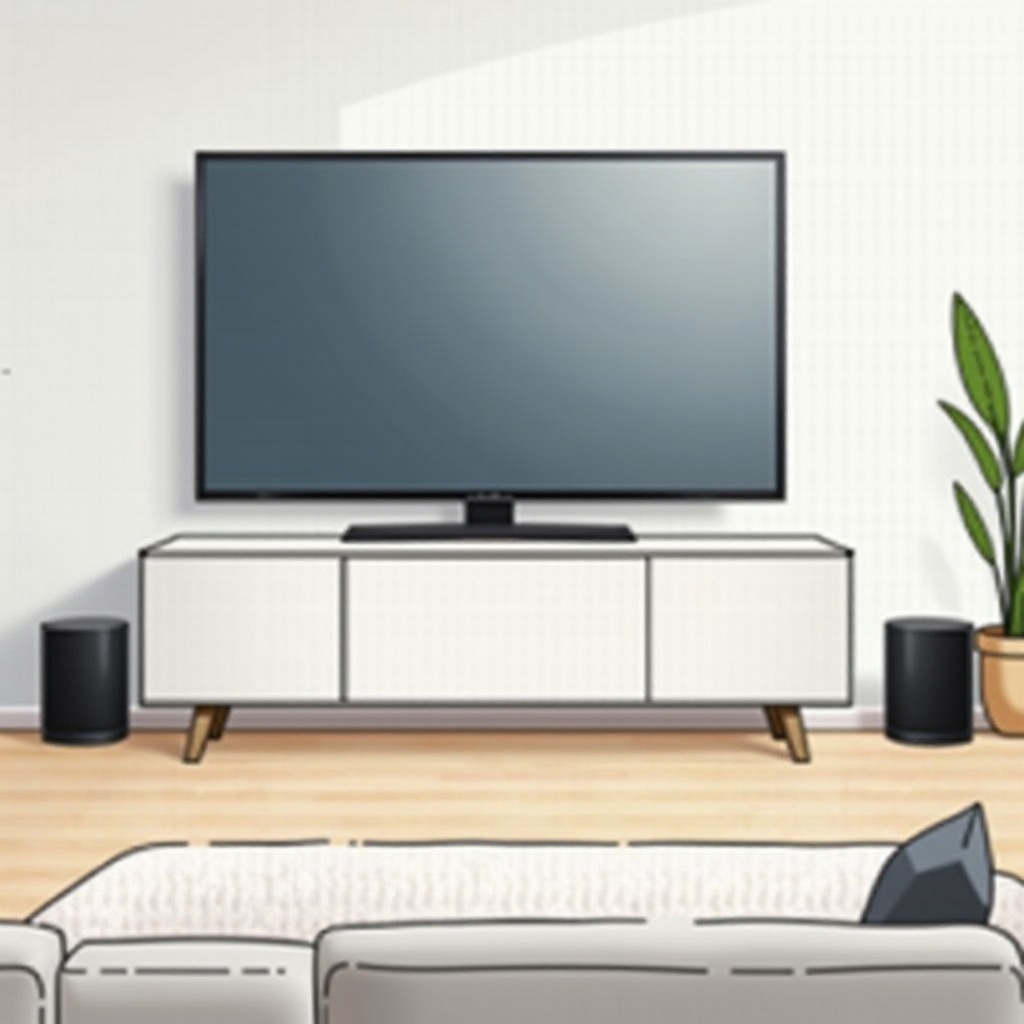
Before you start, ensure your TV can smoothly connect with your Sonos speakers. Sonos offers a variety of models designed specifically for TV integration, including the Sonos Beam, Playbar, and Playbase.
- Sonos Models Suitable for TV Integration: The Sonos Beam, Playbar, and Playbase are designed to complement televisions, offering advanced sound performance and a compact design that fits into any setup.
- Ensuring TV Compatibility with Sonos: Not all TVs are compatible with Sonos speakers. Confirm that your TV has HDMI-ARC or optical outputs, which are necessary for audio transmission between your TV and Sonos.
Once compatibility is confirmed, gather your equipment for setup.
Preparing for Connection
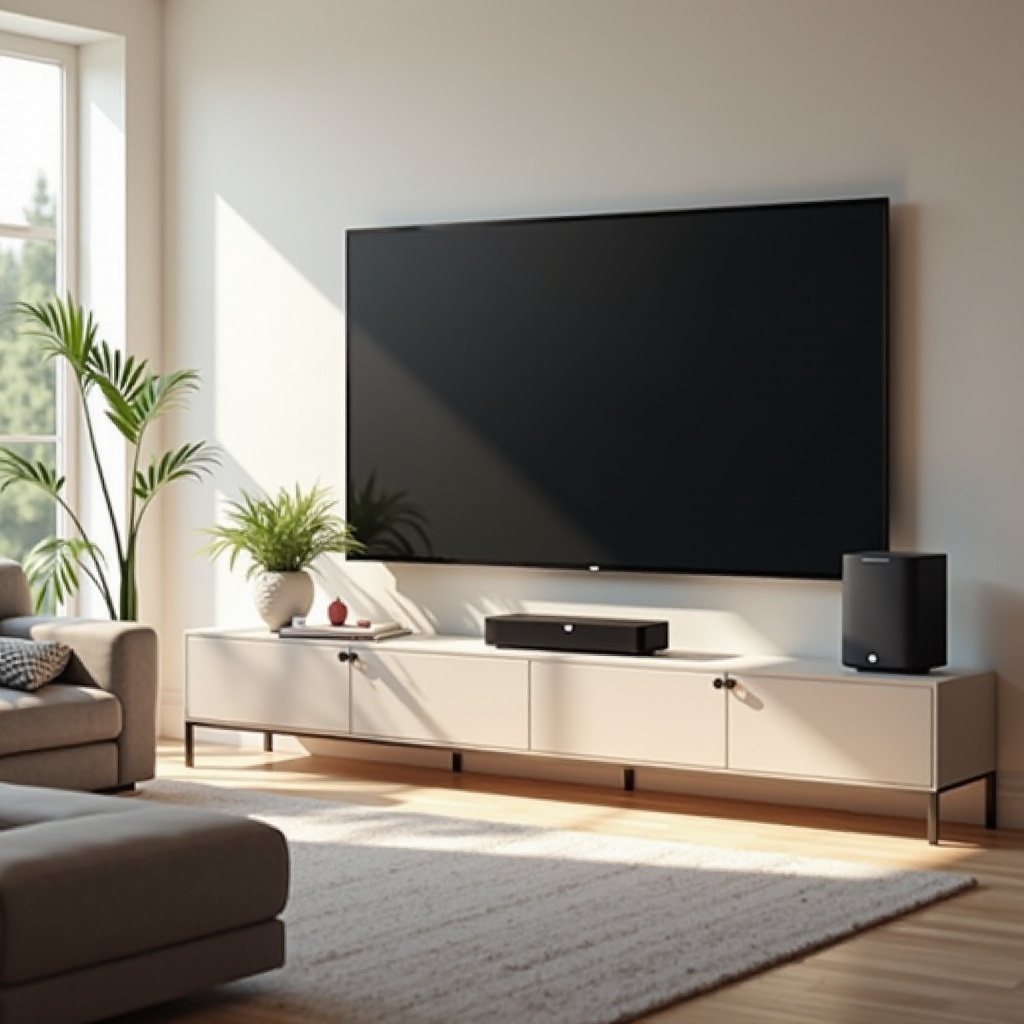
Preparation is key to a successful TV and Sonos link. Ensuring you have the right equipment and meet some basic prerequisites will help.
- Essential Tools and Accessories: Gather HDMI cables, optical cables, and any necessary adapters. Ensure both the TV and Sonos speaker have stable power sources.
- Pre-connection Checklist: Turn off your TV before beginning the setup process. Double-check connections to any receivers involved, and neatly organize your cables for ease of access.
With equipment ready, move on to linking the devices.
Step-by-Step Connection Guide
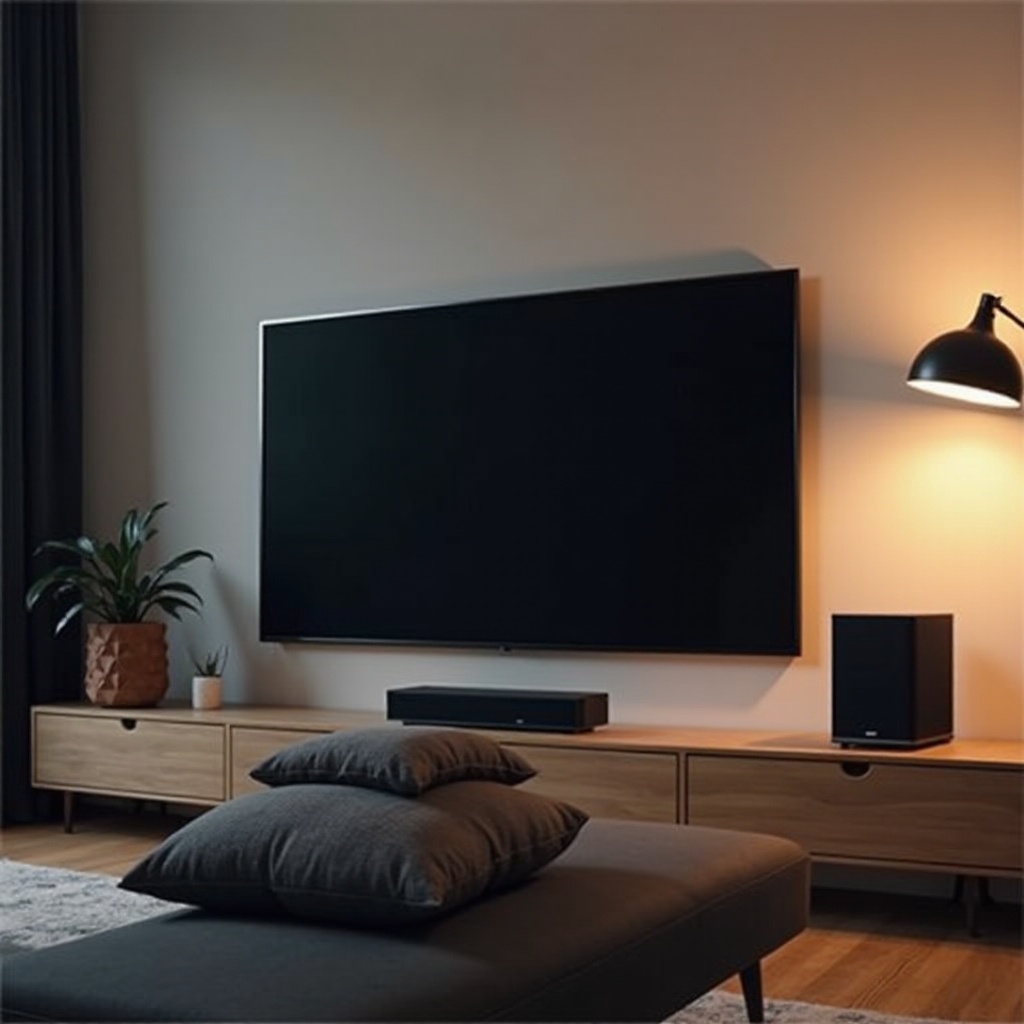
Here’s how to connect your TV to Sonos speakers to achieve enhanced audio quality and setup configuration.
- Connecting with Sonos Beam: Insert one end of the HDMI cable into the HDMI-ARC port on your TV and the other end into the Sonos Beam. Activate HDMI-CEC to ensure device communication and proper sound control.
- HDMI-ARC Setup Process: For connecting Sonos Playbar or Playbase, use an optical cable to link the TV’s optical out to the Sonos speaker’s optical in. HDMI-ARC setups require an HDMI cable.
- Alternative Optical Cable Method: When opting for the optical cable method, set the source correctly to optical on the Sonos speakers. Select audio output settings to direct the sound through the optical connection on your TV.
Following these steps should ensure you receive audio from your Sonos speakers. Next, optimize these settings to enhance the experience.
Optimizing Audio Quality
To maximize sound performance after setup, adjust audio settings that might affect quality.
- Troubleshooting Sound Sync Issues: Occasional audio delays or sync issues can occur. Adjust ‘Lip Sync’ settings in the Sonos app and ensure your TV sound settings are compatible with the Sonos configurations.
- Enhancing Sound with Surround Setup: Expand your setup by adding Sonos surrounds or a subwoofer to create a more immersive audio environment.
Once audio quality is optimized, consider further expanding your Sonos audio system.
Expanding Your Sonos System
Enhancing your sound system post-setup can further improve entertainment experiences.
- Adding More Speakers for Home Theater: Consider supplementing your main units with additional Sonos speakers like Ones or Fives for richer sound detail.
- Multi-Room Audio Integration: Utilize Sonos’ ability to sync multiple speakers across different rooms. Use the Sonos app to adjust audio levels or create zones for synchronized playback, bringing cohesive sound experiences throughout your home.
After these expansions, your sound system will provide immersive audio for any occasion.
Conclusion
Linking your TV to Sonos speakers substantially upgrades your home audio experience. With this guide, you can achieve seamless connectivity that delivers crystal-clear sound. Enjoy exploring different settings and configurations to find the best setup for your needs.
Frequently Asked Questions
Can I connect any TV to Sonos speakers?
Most modern TVs can connect, especially those with HDMI-ARC or optical outputs. Check for these features to start integration.
What should I do if there is an audio delay?
Use the Sonos app to adjust ‘Lip Sync’ controls. Also verify TV audio settings match the Sonos connection method.
Is wireless connection possible with Sonos?
Yes, newer Sonos models support wireless integration. Use Wi-Fi and the Sonos app for setup, though wired connections remain more stable.