
Introduction
Choosing the right tools is essential for boosting work efficiency. Monitors equipped with AirPlay technology offer wireless connectivity, creating a clutter-free and streamlined workspace. These monitors are ideal for enhancing multitasking capabilities and integrating smoothly with Apple devices, transforming your approach to everyday tasks.
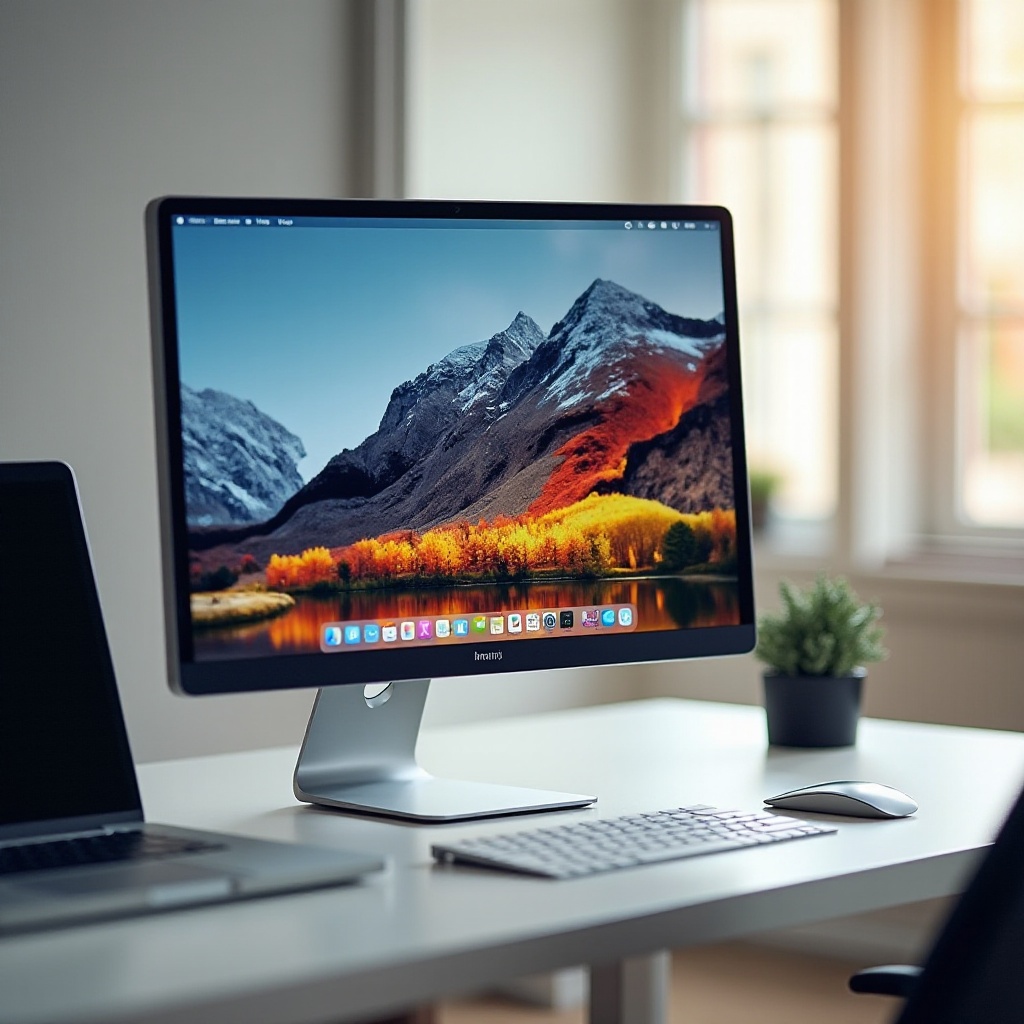
Understanding AirPlay Technology
AirPlay, developed by Apple, facilitates wireless streaming between devices. This capability is advantageous when paired with monitors, enabling users to mirror or extend their screens without reliance on physical cables. AirPlay excels in seamless communication among Apple devices, making it a preferred choice for those using Apple’s ecosystem.
Using Wi-Fi connectivity, AirPlay ensures a stable, fast connection between devices. This feature is particularly beneficial in professional environments where presentations and file sharing are routine. Understanding this technology’s functionality can help users leverage its full potential.
Benefits of Using Monitors with AirPlay
Monitors with AirPlay offer significant productivity and efficiency enhancements. The wireless capability reduces clutter and facilitates seamless device integration, allowing for a broader workspace conducive to multitasking. Users can easily stream content, share presentations, or collaborate with colleagues, thanks to AirPlay’s quick and reliable connections.
These monitors support high resolution for clear, vivid displays, crucial for creatives who require precise color reproduction and high-quality visuals. Thus, investing in AirPlay-compatible monitors can significantly boost output, whether working from home or office.
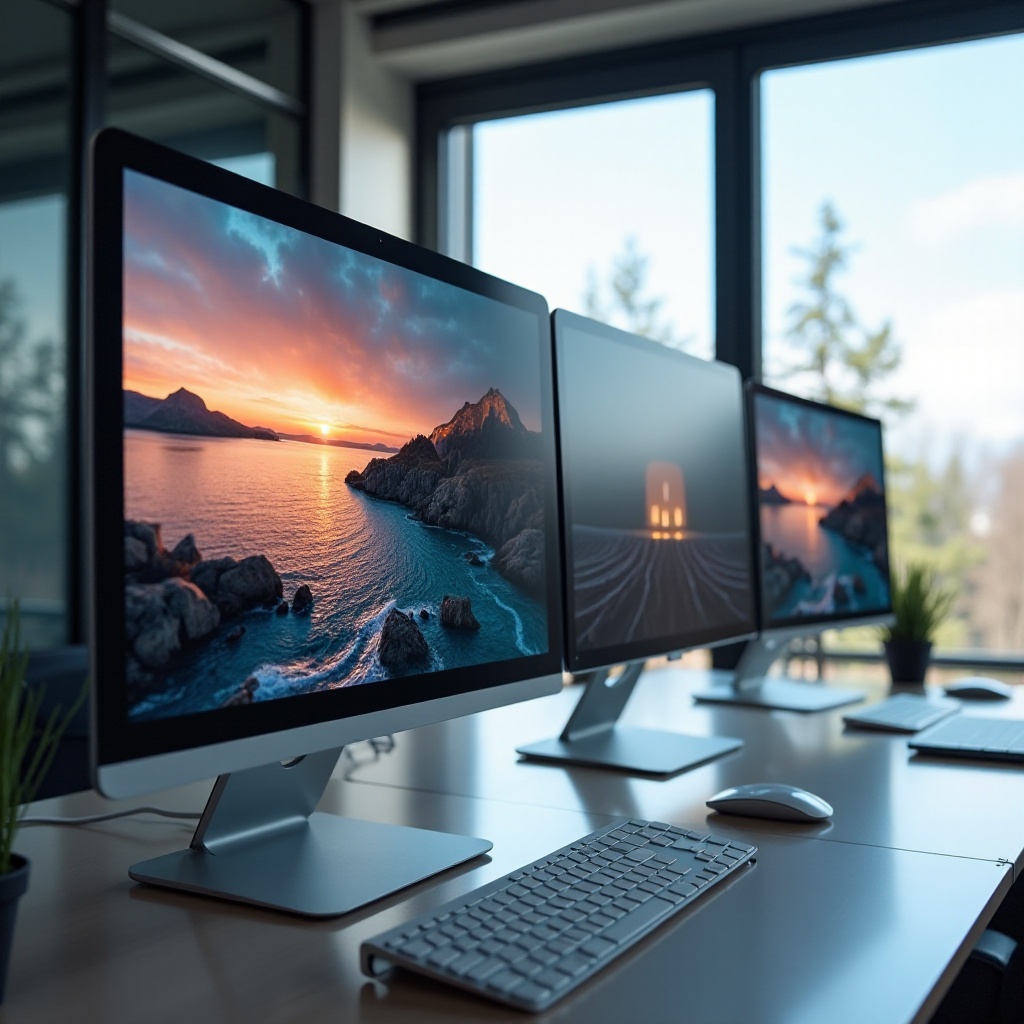
Choosing the Right Monitor for AirPlay
Selecting a monitor compatible with AirPlay involves several considerations. Ensure the monitor supports AirPlay and is compatible with your Apple devices. Look for features such as high resolution, adjustable stands, and multiple connectivity options, ensuring enhanced viewing and usability.
Consider the monitor’s size and screen quality—larger monitors offer more space for multitasking, while high-quality screens provide clear, vibrant visuals. Evaluate audio output options and whether the monitor features touch controls, enhancing interaction and user experience.
Setting Up AirPlay on Your Monitor
AirPlay setup is straightforward. Follow these steps for a smooth installation:
- Connect your monitor and Apple device to the same Wi-Fi network.
- Open the Control Center on your Apple device and select Screen Mirroring.
- Choose your monitor from the list of available devices.
- Follow any additional on-screen prompts to complete the connection.
If setup issues arise, such as connectivity failures, ensure both devices run the latest software versions. A robust router signal is also essential for maintaining a reliable connection during use.

Optimizing Performance with AirPlay Monitors
To optimize AirPlay performance, implement the following strategies:
- Place your router centrally for even Wi-Fi coverage.
- Regularly update your device’s firmware and software.
- Configure AirPlay settings to match your desired display resolution.
Additionally, adjust monitor settings like brightness and contrast to suit the environment, preventing fatigue during prolonged use. Continuous monitoring and adaptations are key to achieving the perfect setup, enhancing overall performance.
Conclusion
Monitors with AirPlay technology offer numerous advantages for transforming your workspace. Their ease of use and seamless compatibility with Apple devices make them invaluable additions to any professional setup. Integrating these monitors into your system is a step towards increased productivity and efficiency, whether for creative projects or remote work.
Frequently Asked Questions
Can I use AirPlay with non-Apple devices?
AirPlay is designed primarily for Apple devices, but some apps may provide limited compatibility with non-Apple devices.
How do I resolve connection issues with AirPlay?
Ensure your devices are updated and connected to a strong Wi-Fi network. Check compatibility and restart devices if necessary.
Does AirPlay affect the monitor’s image quality?
AirPlay typically maintains high image quality. Wi-Fi signal strength and device capabilities can influence performance.