
Introduction
Beats headphones are renowned for their superior sound quality and sleek aesthetics. However, maximizing their volume capabilities can significantly enhance your listening experience. This guide explores various methods to increase the volume on your Beats headphones, regardless of whether you own a wired or wireless model. Prepare to immerse yourself in music, podcasts, and videos at your preferred audio level.
Understanding Your Beats Headphones
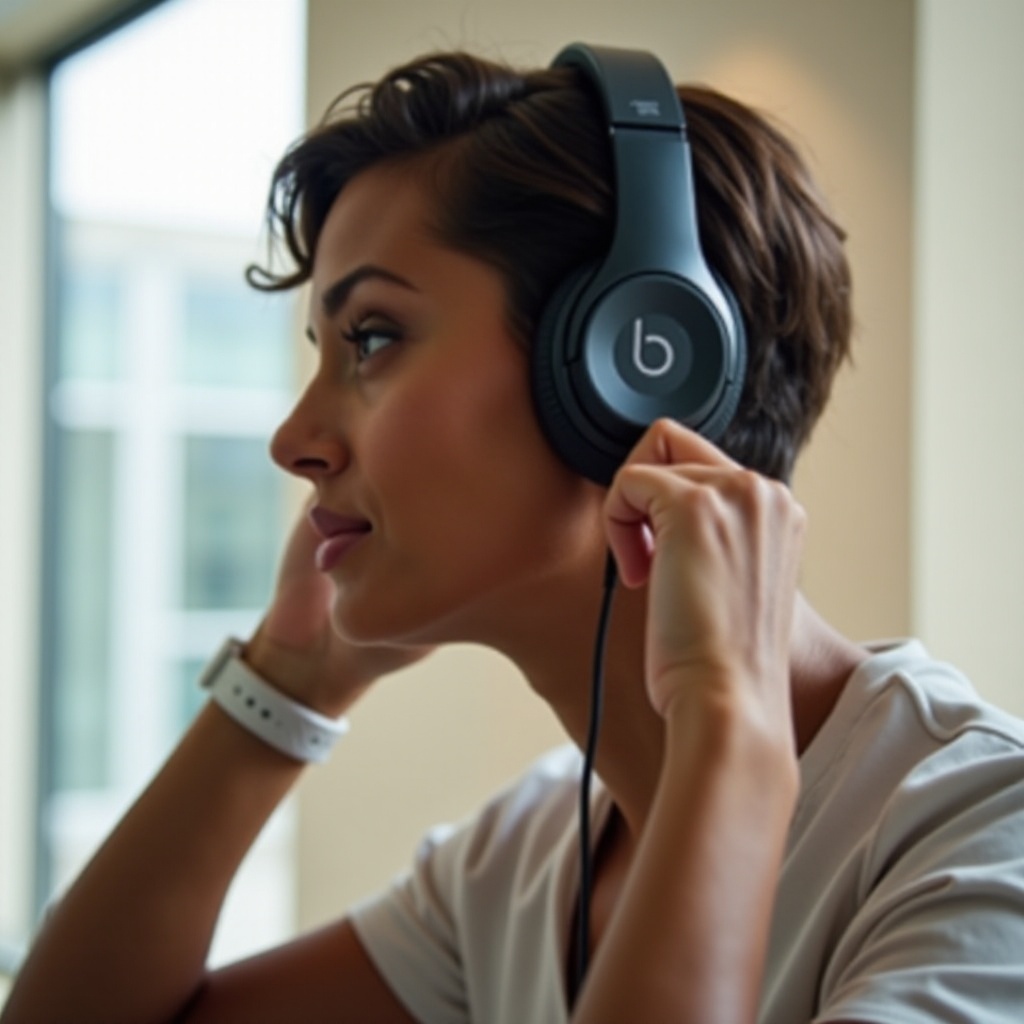
Before diving into volume adjustments, it’s crucial to identify your specific Beats model, as volume control techniques may differ. Beats offers various series, including Solo, Studio, and Powerbeats, each with unique features and methods for adjusting the volume.
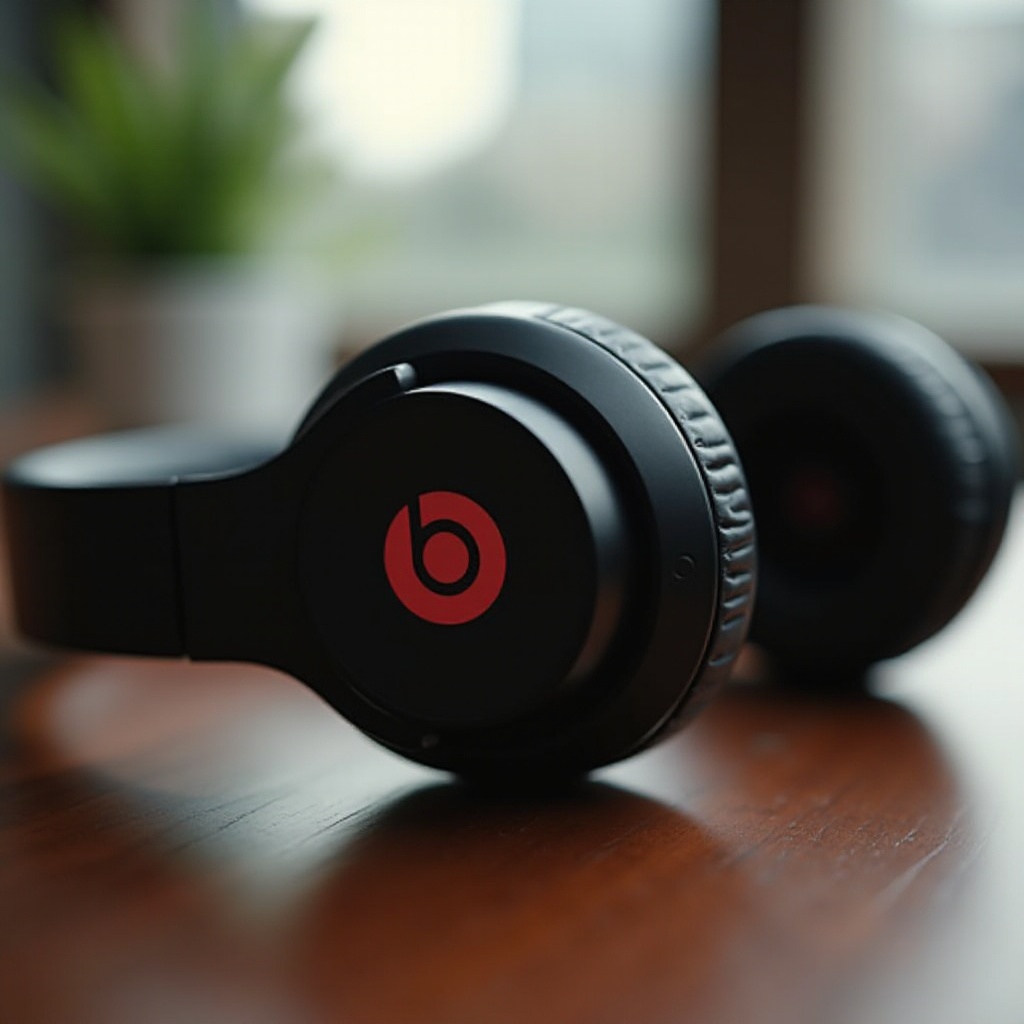
- Overview of Different Models: The Solo series typically features on-ear headphones available in both wired and wireless formats. The Studio series includes over-ear headphones with advanced noise-canceling capabilities, while the Powerbeats series caters to athletes, offering a secure fit and sweat-resistant design.
By distinguishing between these models, you can apply the appropriate volume adjustment technique.
Step-by-Step Volume Adjustment Guide
Knowing your model is the first step. Now, let’s proceed with specific instructions for managing volume on different types of Beats headphones.
- Managing Volume on Wired Beats Headphones:
- Locate the inline controls on the headphone cable.
-
Press the ‘+’ button to increase the volume and ‘-‘ to decrease it.
-
Enhancing Volume on Wireless Beats Headphones:
- On the earcup, press the ‘+’ button to raise the volume.
- Ensure Bluetooth is enabled and connected to your device for seamless control.
- Alternatively, adjust the volume directly from your connected device (smartphone, tablet, etc.).
With these methods in place, adjusting volume becomes straightforward. In the event of unresponsive volume controls, troubleshooting is your next stop.
Troubleshooting Common Volume Issues
Sometimes, even premium headphones like Beats may experience volume-related problems. If your headphones are unresponsive to volume adjustments, consider these troubleshooting steps:
- When Volume Controls Aren’t Responding:
- Verify that your headphones are charged and powered.
-
Check the device connection, ensuring that its volume settings are also adjusted appropriately.
-
Steps to Reset Your Headphones:
- For most models, hold the power button and volume down button together for 10 seconds.
- Release when the LED indicator blinks, indicating a reset.
As we resolve potential issues, let’s explore advanced strategies for optimizing audio quality.
Advanced Tips for Optimal Sound
Achieving an optimal sound experience extends beyond simply increasing volume. Implement these advanced techniques to enhance your Beats headphones’ audio quality:
- Utilizing Apps for Sound Customization:
- Download the Beats app for additional sound control options on compatible devices.
-
Adjust the equalizer settings to fine-tune audio output to your preferences.
-
Protecting Your Hearing While Maximizing Volume:
- Use volume limit settings on your device to prevent the audio from exceeding safe listening levels.
- Regularly take breaks to alleviate ear fatigue during extended listening sessions.
Conclusion
In summary, mastering volume control on your Beats headphones can greatly enhance your auditory enjoyment. By recognizing your model, employing suitable adjustment techniques, troubleshooting as needed, and leveraging advanced sound options, you can experience the full potential of your headphones. Dive into a superior sound experience with confidence.
Frequently Asked Questions
How do I increase the volume on my Beats headphones if the controls aren’t working?
Ensure your headphones are charged and connected properly. A reset might also be necessary, following the instructions provided.
Can I adjust the volume of my Beats headphones using my smartphone?
Yes, you can adjust the volume via your smartphone’s settings when your device is connected through Bluetooth.
Why does the volume differ between wired and wireless modes?
Differences may arise from the audio transmission method. Wired connections might provide better fidelity, while wireless can involve compression, affecting volume.