
Introduction
HDMI is integral to delivering high-definition audio and visual content from devices to your LG TV. Correctly optimizing these settings can dramatically enhance your viewing experience. This guide will provide all necessary insights to ensure your LG TV’s HDMI settings are expertly tuned.
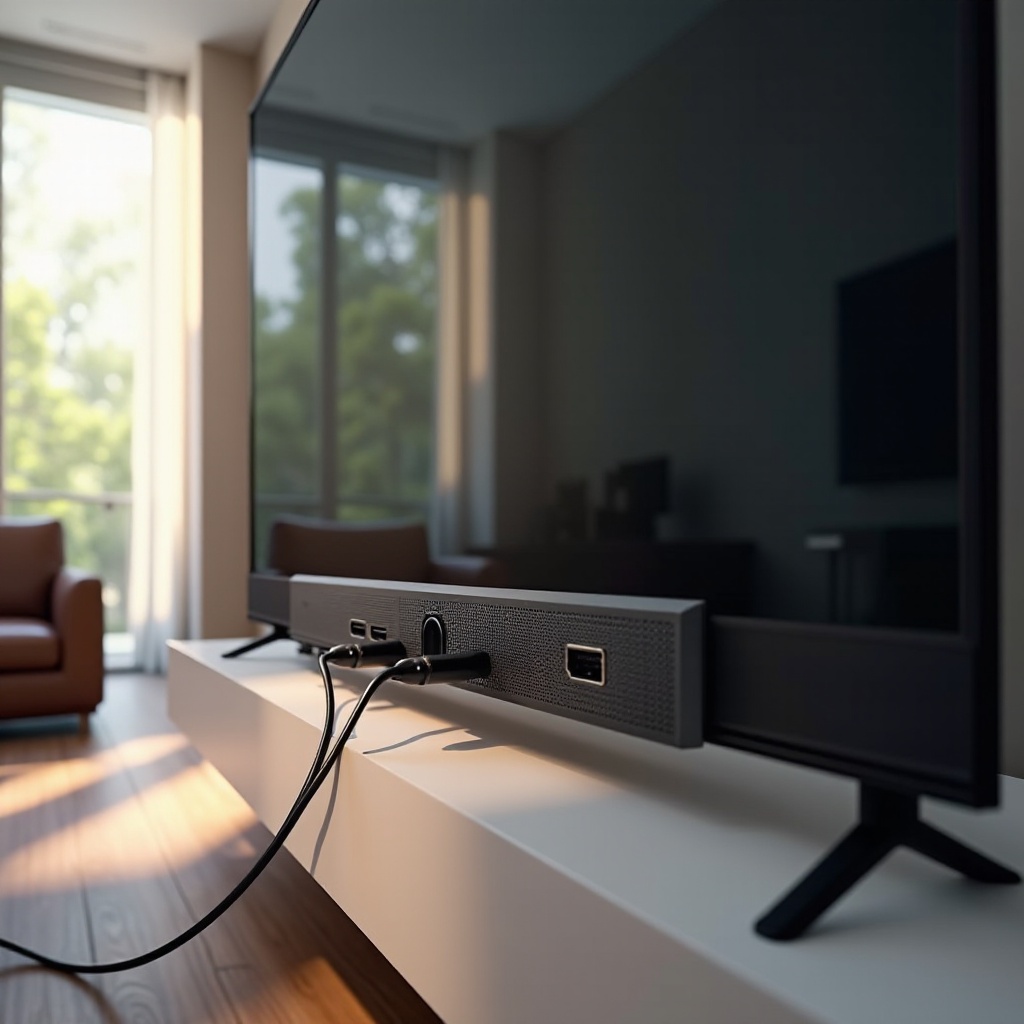
Understanding HDMI Technology in 2024 LG TVs
HDMI stands for High-Definition Multimedia Interface, a technology that transforms how we connect devices to TVs. It provides improved signal quality and supports features like HDMI ARC and CEC, enabling seamless integration and single-remote control for multiple devices. Knowing how to leverage HDMI technology in your 2024 LG TV is key to enhancing home entertainment.
Once the basics are covered, navigating and adjusting settings for your LG TV becomes intuitive. Let’s examine step-by-step how these settings can be accessed and optimized.
Navigating HDMI Settings on Your LG TV
Optimizing your LG TV performance involves precise adjustments in HDMI settings. To access them:
1. Press ‘Settings’ on your LG remote to open the menu.
2. Choose ‘All Settings’ for comprehensive adjustment options.
3. Select ‘Picture’ and ‘Sound’ to refine image quality and audio clarity to suit your preferences.
4. Explore ‘Connection’ for HDMI ports management.
Adjusting these settings enriches your multimedia experience. Next, we’ll dive into how precise modifications in picture and sound settings bolster performance.
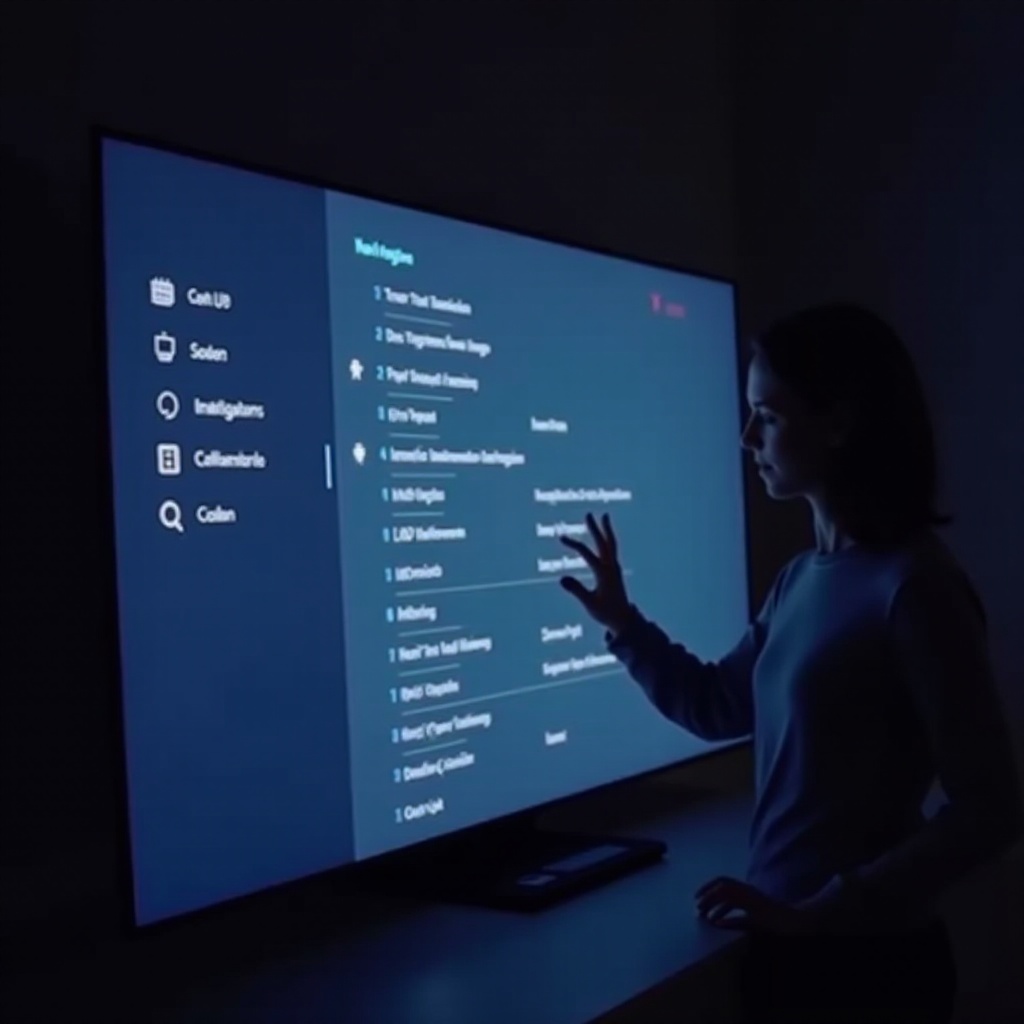
Detailed Guide to Adjust HDMI Picture and Sound
Proper picture and sound settings are critical for a superior multimedia experience. Here’s how to adjust these settings:
- Picture Settings:
- Resolution and Aspect Ratio: Set your TV to maximum supported resolution, such as 4K, ensuring the correct aspect ratio to prevent distortion.
-
Color and Contrast: Tailor these settings for rich colors and balanced contrast. Dynamic modes can enhance automatic adjustment in varying light conditions.
-
Sound Settings:
- Sound Mode: Choose from options like ‘Cinema’ or ‘Standard’ to fit your activities.
- Audio Sync and Delay: Use sound sync settings to resolve audio lag and ensure optimal timing with video.
Mastering these adjustments is crucial. Yet, issues might sometimes occur, which leads us to troubleshooting HDMI problems.
Troubleshooting Common HDMI Issues on LG TVs
Despite optimizing HDMI settings, issues can arise. Here are solutions for common hurdles:
- No Signal Error:
- Ensure cables are securely plugged and undamaged.
-
Confirm TV is set to the correct HDMI input related to the connected device.
-
Audio/Video Synchronization:
- Adjust ‘Lip Sync’ feature for any audio lag issues.
- Update your LG TV’s firmware to tackle software-related problems.
Solving these issues guarantees seamless entertainment. Discover next the advanced HDMI features that offer peak performance.
Advanced HDMI Features for LG TV Performance
Explore HDMI’s advanced features to maximize LG TV performance:
- HDMI CEC: Simplifies control by allowing all connected devices to be managed via one remote.
- HDMI eARC: Supports superior audio formats through Enhanced Audio Return Channel, delivering unmatched sound quality.
Implementing these features transforms viewing and listening into holistic experiences.
Conclusion
Optimizing HDMI settings is foundational for superb LG TV performance. Through careful picture and sound settings adjustments and problem-solving, you elevate your multimedia system to deliver immersive home entertainment.
Frequently Asked Questions
How do I access HDMI settings on my LG TV?
Use your LG remote to navigate to ‘Settings’, then select ‘All Settings’ for full configuration options.
What should I do if my LG TV shows no HDMI signal?
Ensure all cables are securely connected and the appropriate HDMI input is selected on your TV.
How can I enhance audio quality through HDMI on my LG TV?
Select optimal sound modes and utilize HDMI eARC for superior audio formats.